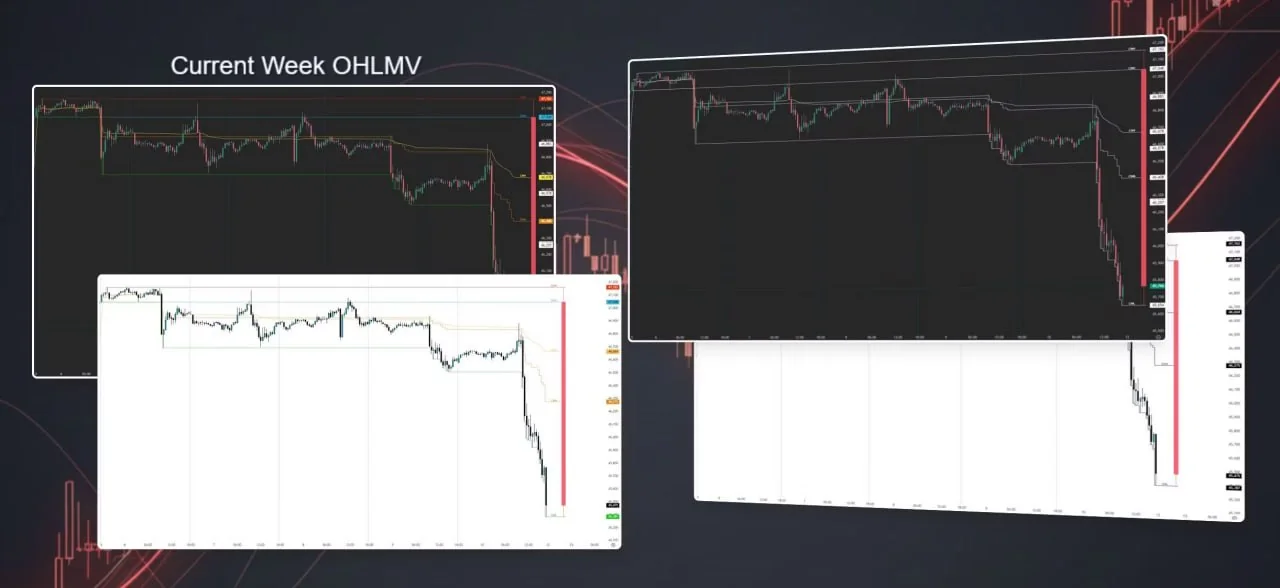
How to Set Up TradingView & Connect Your PonoTrading Indicators
Link your exact TradingView username in the PonoTrading dashboard, grant invite-only access, then add the scripts on the same account you actually chart with.
PonoTrading tools run on TradingView and NinjaTrader. This guide is the TradingView half of setup: link your username in the PonoTrading dashboard, grant access, then add the right scripts on a chart.
If you also use NinjaTrader, use the sister guide for that platform (link below). Do not mix the steps — TradingView does not use zip imports or NinjaScript Add-Ons.
Educational tools only. Tools do not guarantee profits. Trading involves substantial risk of loss.
Before you start
Have these ready:
- A TradingView account you actually chart with
- Your PonoTrading login (same account you used at checkout, if you just joined)
- Your exact TradingView username from your TradingView profile (not a display nickname, and not your email)
After checkout, return to your PonoTrading dashboard. The dashboard shows your active membership and guides Discord, TradingView, and NinjaTrader setup for your plan.
Use the same TradingView account for linking and for charting. If you link one account and open charts under another (browser profile, desktop app, or a broker chart window signed into a different TradingView user), member scripts will look “missing.”
Part 1: Confirm membership in the PonoTrading dashboard
- Log in at ponotrading.com (Login).
- Open your dashboard.
- Confirm the membership you expect is active (Keiki / free community, Haumana, or Kahuna — see Pricing; do not rely on memorized dollar amounts).
- If the dashboard still looks wrong after a refresh, confirm you are on the same login used at checkout before you open a support ticket.
Most account access should appear shortly after checkout. If you are mid-setup and tools are blank, wait, refresh, then continue.
Part 2: Link your TradingView username (dashboard)
In the dashboard, use the TradingView Access card.
- In TradingView, open your profile and copy the username exactly (spelling and capitalization as shown).
- On the TradingView Access card, find the field TradingView Username.
- Paste your username.
- If you are not yet subscribed and the soft card is available, you can Save Username under TradingView first.
- Onboarding checklist item: Add TradingView username.
- When you are ready to unlock member scripts, use Grant My Access or Update & Re-sync on the TradingView Access card.
Wrong username is the first thing to check when a member script does not appear.
Part 3: Grant invite-only script access
Member library scripts are unlocked from your PonoTrading dashboard.
- Save your exact TradingView username on the TradingView Access card (Part 2).
- Click Grant My Access or Update & Re-sync.
- That dashboard grant / sync button grants your TradingView access. Scripts typically show within about 60 seconds.
- On TradingView.com, open Indicators → Invite-only scripts.
- Add the scripts you need from that invite-only list.
Part 4: Free vs member scripts
Invite-only member library (Haumana and Kahuna)
Haumana and Kahuna members get these 18 invite-only scripts after a successful grant:
- Current Day OHLMV Pro+
- Current Month OHLMV Pro+
- Current Quarter OHLMV Pro+
- Current Year OHLMV Pro+
- Current Week OHLM+VWAP
- Gap Display
- Huli
- MTRA Pro+
- MTRA Intraday
- MTRA Screener
- Prior Day OHLMC Pro+
- Prior Week OHLMC Pro+
- Prior Month OHLMC Pro+
- Prior Year OHLMC Pro+
- Session Ranges Pro+
- Tripwire Pro+
- WeeklyDealingRange Pro+
- WeeklyDealingRange Fib
These are not part of the invite-only member library (do not expect them under Invite-only scripts from this grant): ImbalancePro+, Breakers, PonoAlgo, Expected Move, Mission Control, Trade Copier.
Free community tools
These free community tools are separate from the invite-only grant path:
- Pele Candles — product page · TradingView script
- 4 Hour OHLMC — product page · TradingView script
- Expected Move MTF — product page · TradingView script. The TradingView script is free and public; the NinjaTrader version may require sign-in.
- Pua Candles — free on TradingView (script). No dedicated PonoTrading product page.
- Huli-Huli Reversal Window — free on TradingView (script). No dedicated PonoTrading product page.
Huli / Huli Reversal Patterns is in the Haumana invite-only library above. It is not a free community tool.
More free community scripts may appear under Indicators, the Tools catalog, or the published-scripts list:
- Tools: https://ponotrading.com/tools
- TradingView hub: https://ponotrading.com/tradingview-indicators
PonoTrading on TradingView (published scripts): https://www.tradingview.com/u/PonoTrading/#published-scripts
Plan names and inclusions: always check live Pricing / join pages. This how-to does not list dollar prices.
Part 5: Add a PonoTrading indicator to a TradingView chart
- Open TradingView and log in as the same account whose username you linked.
- Open the chart for the symbol you trade.
- Open Indicators.
- For member library scripts: open Invite-only scripts, then pick the script from the list in Part 4.
- For free community tools (Pele Candles, 4 Hour OHLMC, Expected Move MTF, Pua Candles, Huli-Huli Reversal Window): follow the product page or TradingView script link in Part 4.
- Add the script to the chart.
- Optionally save the layout or Favorites so you are not hunting next session.
Part 6: If the indicator is missing
Work this checklist in order:
- Username exact — Re-copy the TradingView profile username into TradingView Username on the TradingView Access card. Spelling and capitalization must match.
- Save + grant — Confirm username is saved, then click Grant My Access or Update & Re-sync. Wait about 60 seconds.
- Refresh — Refresh TradingView (and the dashboard) after the grant.
- Invite-only area — Look under Indicators → Invite-only scripts, not only the global search.
- Same TradingView account — Charting must be the linked account, including if you open TradingView inside a broker platform.
- Plan / script list — Confirm the script is on the Haumana / Kahuna invite list above, or is a free community tool listed in Part 4.
- Still stuck — email contact@ponotrading.com or Discord support with (never passwords):
- Checkout email
- PonoTrading login email
- TradingView username (exact)
- Script name you expected
- What you already tried (saved username? Grant / Re-sync? Invite-only checked?)
Related links
| Resource | URL |
|---|---|
| Tools catalog | https://ponotrading.com/tools |
| TradingView indicators hub | https://ponotrading.com/tradingview-indicators |
| NinjaTrader setup guide | https://ponotrading.com/blog/how-to-set-up-ninjatrader-ponotrading-indicators |
| RTH Market Prep playbook | https://ponotrading.com/blog/rth-market-prep-playbook |
| RTH Market Prep archive | https://ponotrading.com/blog/rth-market-prep |
| Pricing | https://ponotrading.com/pricing |
| Join Haumana | https://ponotrading.com/join/haumana |
| Join Kahuna | https://ponotrading.com/join/kahuna |
| FAQ / Support Center | https://ponotrading.com/faq |
| This guide | https://ponotrading.com/blog/how-to-set-up-tradingview-ponotrading-indicators |
Support
- Start with the FAQ / Support Center.
- Active members: official PonoTrading Discord support area (connect Discord from the dashboard first).
- Email: contact@ponotrading.com — include the fields in Part 6 (never passwords).