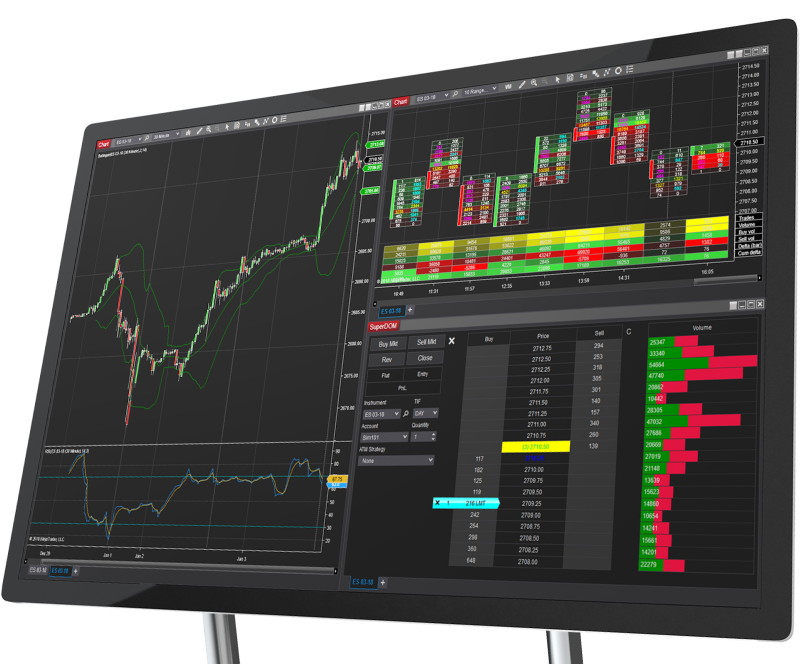
How to Set Up NinjaTrader & Connect Your PonoTrading Indicators
Learn how to create a free NinjaTrader account, download NinjaTrader 8, install the platform, and connect your PonoTrading indicators the right way.
How to Set Up NinjaTrader & Connect Your PonoTrading Indicators
NinjaTrader Desktop is one of the easiest ways to get started with charting, backtesting, and sim trading. The best part: free NinjaTrader access does not require a brokerage account. You can create an account, download NinjaTrader 8, and start using the platform for charting and simulation without funding anything.
This guide walks you through the full NinjaTrader setup process step by step, then shows you how to connect your PonoTrading account so your NinjaTrader indicators are ready to install.
If you're still deciding which tools you need, check out our NinjaTrader indicators or compare plans on our pricing page.
Part 1: Create Your Free NinjaTrader Account
To get started, go directly to the official registration page:
account.ninjatrader.com/register
Then follow these steps:
- Click Get Started or Sign Up.
- Enter your email address, or use Google / Apple sign-up if you prefer.
- Check your inbox for the confirmation email and click the verification link.
- Create your NinjaTrader username and password.
- Agree to the Terms and Conditions.
- Finish setup and access your NinjaTrader Account Dashboard.
This gives you a free NinjaTrader account you can use to download the platform and start working inside NinjaTrader 8.
Part 2: Download NinjaTrader Desktop
Once your account is active, log in here:
From the dashboard:
- Look for the Download button on the bottom-left area of the Home page.
- Click Download.
- On the Desktop Application Download page, click Download under the most recent release.
- Save the installer file, usually named
NinjaTrader.install.exe.
This is the official NinjaTrader download path. Always use the account dashboard so you're installing the latest supported version of NinjaTrader 8.
Part 3: Install the Software
After the installer finishes downloading:
- Run the installer file.
- Follow the on-screen installation steps.
- The default install path is typically
C:\Program Files\NinjaTrader 8. - Launch NinjaTrader from your desktop shortcut or the Start menu.
- Log in using the username and password you just created.
That completes the basic NinjaTrader setup process.
Part 4: Getting Started in the Platform
As soon as you log in, you can start using the platform in Simulation mode (Sim101) for risk-free practice.
Here's what's included:
- Simulation trading right away, with no live account required
- A free 14-day trial of real-time market data
- Ongoing access to charting, backtesting, and sim trading even after the trial ends
For most traders, that makes NinjaTrader 8 a solid environment for learning the platform, testing trading indicators, and practicing execution before going live.
Part 5: Connect Your PonoTrading Indicators
Once NinjaTrader is installed, the next step is linking the right email address inside your PonoTrading account.
- Log in to your PonoTrading dashboard.
- In the sidebar, find the NinjaTrader section.
- Enter the email address associated with your NinjaTrader account.
- Click Save.
- Your licensed PonoTrading indicators will appear in the dashboard for download.
- In NinjaTrader, go to Tools → Import → NinjaScript Add-On and import the downloaded .zip files.
If you have not picked a plan yet, you can review your options on our pricing page.
Important Tips
Keep these points in mind during setup:
- Always download NinjaTrader directly from the official Account Dashboard
- NinjaTrader Desktop runs on Windows, so check system requirements before installing
- Never download the installer from third-party websites
- PonoTrading NinjaTrader indicators currently require NinjaTrader 8
Written by
PonoTrading Team
PonoTrading publishes futures trading education, market structure notes, expected move analysis, and practical indicator workflows for retail traders.
Related Articles

RTH Market Prep: the PonoTrading playbook
RTH Market Prep is the desk habit in front of the first click: overnight location, clocks, expected-move bands, key levels, remaining size, and when to stand down. It is not a signal and not a forecast.

Cake Before Icing: A Sustainable Framework for Growing a Prop-Trading Business
Secure personal needs, taxes, reserves, operating costs, and a repeatable process before using realized prop-trading results to fund additional accounts or complexity.
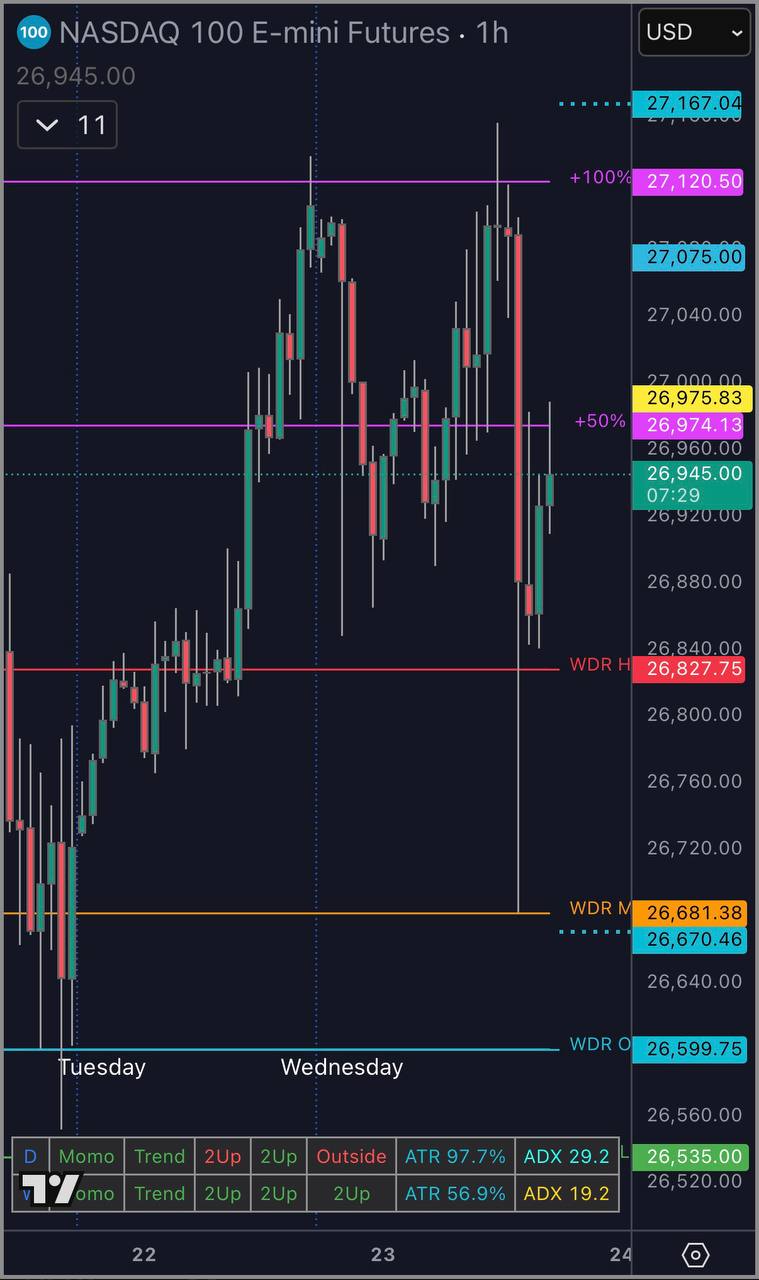
The Weekly Dealing Range Median: The One Level That Caught the Low to the Tick
Today NQ tagged a projected level to the exact tick and reversed. That level wasn't Fibonacci. It wasn't a moving average. It was the Weekly Dealing Range Median — the most underused level in retail trading.